Handoff rules and team replies
Configure when a person is needed, set team hours, take over a social conversation, and resume its assistant safely.
4 min read
- Project
- Integrations
- Social chats
- Manage
- Human handoff
Configure handoff rules and team hours for the account; open Handoffs to take over, reply, and resume its assistant.
Account settings decide when a person is needed. Handoffs is where teammates read the context and respond. Team hours describe a schedule, not live teammate presence.
- Finish with
- Clear automatic rules and a team conversation you can take over and resume
Use assistant defaults or account-specific rules
A workspace owner or administrator opens Integrations → Social chats → Manage → Human handoff for the intended account. Keep the assigned assistant's defaults or save a policy just for this connection. Use assistant defaults removes the account-specific override.
To change shared defaults, open the assistant's handoff settings. Accounts with overrides continue using their custom rules. Saved policy changes do not automatically resume conversations already in team control.
Decide when to involve a person
| Control | What it does |
|---|---|
| Use handoff rules | Allows automatic handoff when a request or configured rule calls for it |
| Trigger phrases | Routes matching phrases such as “talk to a person” to the team |
| If the assistant cannot answer | Counts completed answers marked as lacking enough knowledge; choose one, two, or three, or turn the threshold off |
| Topics requiring your team | Gives the assistant instructions for topics such as refunds or account changes |
| Never hand off | Disables automatic handoff, including the assistant's handoff tool and saved automatic rules |
Clarifying questions do not count as insufficient answers. Topic rules require assistant evaluation; a rule preview is not proof that a topic has been understood.
Never hand off keeps the assistant in charge even if a customer requests a person. It must explain its limits without promising a team reply. Rules are retained for when you re-enable automatic handoff. Manual team takeover remains available. This setting does not enable unsupported media or permit replies outside the messaging window.
Set team hours and customer expectations
Enable Team hours, choose the Time zone from the dropdown, and set weekly openings. Use multiple openings for a break, copy Monday to weekdays where appropriate, and add Holidays & special hours for date-specific changes. Daylight saving follows the selected timezone.
For Outside team hours, choose:
- Let the assistant continue: routine questions can receive assistant replies. Person requests can still hand off when automatic rules are enabled.
- Hand new chats to the team: route new chats to people while the team is closed. Write an accurate outside-hours message; a person is not necessarily immediately available.
Never mode disables automatic outside-hours handoff. Configure an optional handoff acknowledgement and outside-hours message. Acknowledgements are sent only when the channel can accept a reply; avoid promising an immediate response.
Select Preview outcome with a sample phrase and time, then Save policy. Preview does not send a message, call a model, or use credits. Test topic behavior in a real conversation after saving. If another administrator saved first, review the latest version before saving again.
Take over, reply, and return control
Find the waiting conversationOpen Handoffs and select the customer thread.
Filter by channel, account, or assistant as needed. Read the messages and handoff reason. Overview provides current attention counts; Insights provides historical measurements.
Take over and send a team replyConfirm who controls the chat, then reply from the team composer.
Taking over stops further assistant replies and cancels queued assistant messages. A message already dispatched to Meta may still arrive. Refresh and review if another teammate changes ownership.
Resume or closeSelect Resume assistant for ongoing help, or Close conversation when finished.
Resume enables future assistant replies with retained context. It does not replay the backlog. Close ends this conversation; the next customer message can start a new one using the account's current assistant.
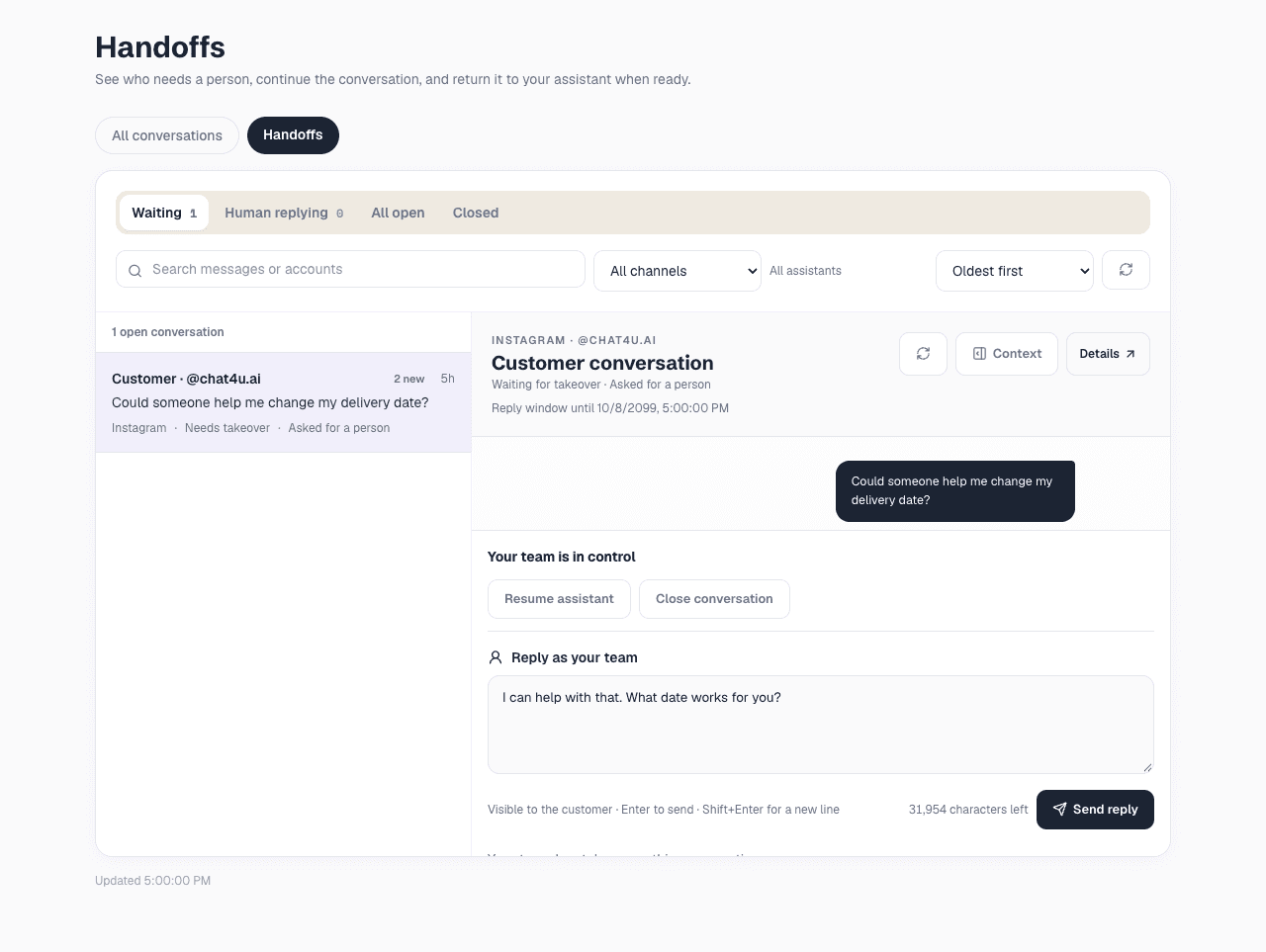
Illustrative platform screenshot with sample customer content; it is not a delivery receipt.
Human text replies do not use AI reply credits. Native-app activity may also change Chat4U's ownership state; review the thread before sending from another inbox.
Last updated on