Social chats
Plan Messenger and Instagram support, choose an assistant for each account, and find the right setup or operations guide.
3 min read
- Project
- Integrations
- Social chats
Connect Facebook Pages or professional Instagram accounts, select an assistant for each account, and manage handoff and recovery in the project.
Use your approved business knowledge in customer-initiated Messenger and Instagram conversations. Your team can take over in Chat4U, reply through the same channel, and resume the assistant when ready.
- Finish with
- A clear channel, assistant, and handoff plan before connecting
Choose your next step
Authorize a Facebook Page and verify its first reply.
SetupConnect InstagramUse Instagram Login with a Business or Creator account.
Team workflowConfigure and handle handoffsSet account rules, team hours, and take over with context.
MeasureRead Social insightsCompare channel activity and understand human reply metrics.
RecoverLimits and troubleshootingCheck media access, reconnect, and resolve delivery problems.
Which accounts connect?
| Channel | Business account | Connection method |
|---|---|---|
| Messenger | A Facebook Page you can authorize | Facebook authorization, then select the intended Page |
| A Business or Creator account you can authorize | Instagram Login; a linked Facebook Page is not required for this Chat4U flow | |
| Not yet available | No new WhatsApp connections in this release |
You connect the business account that customers message. Customers continue using their own Messenger or Instagram accounts. They do not need a Chat4U account. You do not need to create your own Meta developer app or paste access tokens into Chat4U for normal connection setup.
Access and cost
Your project's effective plan must include Social chats. Image understanding and voice-note transcription additionally require Social image and voice understanding and configured processing services. A plan name by itself does not establish access; check the features shown in the project's Billing page and the current pricing catalog.
Workspace owners and administrators connect accounts and change settings. Authorized project members can handle conversations. Plan access, account permissions, and channel availability are separate: upgrading does not fix a provider authorization problem or make an unavailable channel ready.
Assistant replies use the project's message credits. Human text replies do not consume AI reply credits. Media processing can use additional credits; check the project's usage information.
Choose the right assistant for each account
Each connection has its own assistant assignment. Use one assistant across accounts or select different assistants with different knowledge and instructions.
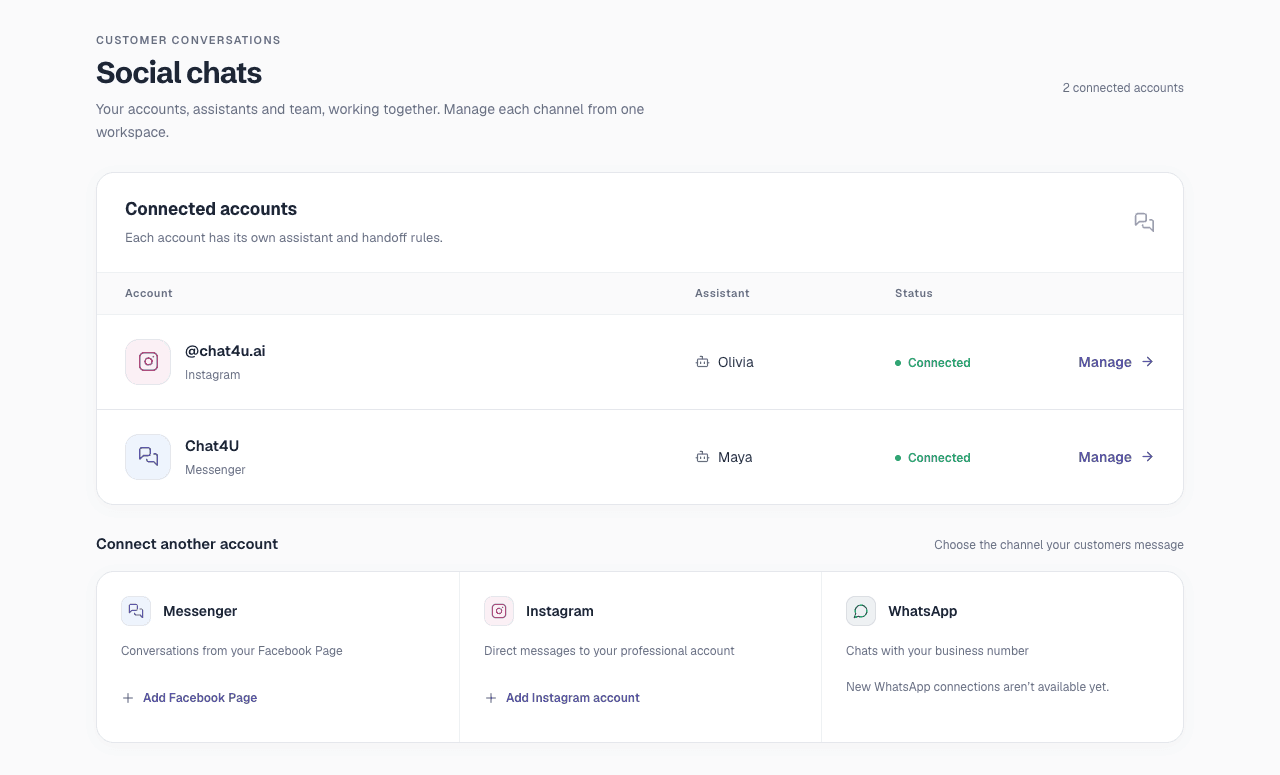
Illustrative platform screenshot; account names and assistant assignments are examples.
Changing an account's assistant affects new conversations. Existing conversations retain their original assistant. Closing a conversation lets the next customer message start a new conversation using the account's current assistant.
What customers and teammates see
The customer stays in the native social app. Your team sees the thread, the reason a person is needed, who controls the conversation, and the available reply window in Chat4U's Handoffs area.
Conversation context is retained when the assistant resumes, subject to the system's context limits. Chat4U does not merge a person's Messenger and Instagram identities or import their entire historical Meta inbox when you connect an account.
Verify a new connection with a fresh text reply in the native app, then test handoff, a team reply, and resume. A Connected status or successful connection check is setup evidence; the native-client reply verifies the customer experience.
Last updated on